


More screen space is useful when you know what to do with it. If your reference material, messages, and live tools keep covering the work in front of you, the answer may be to give each one its own place.
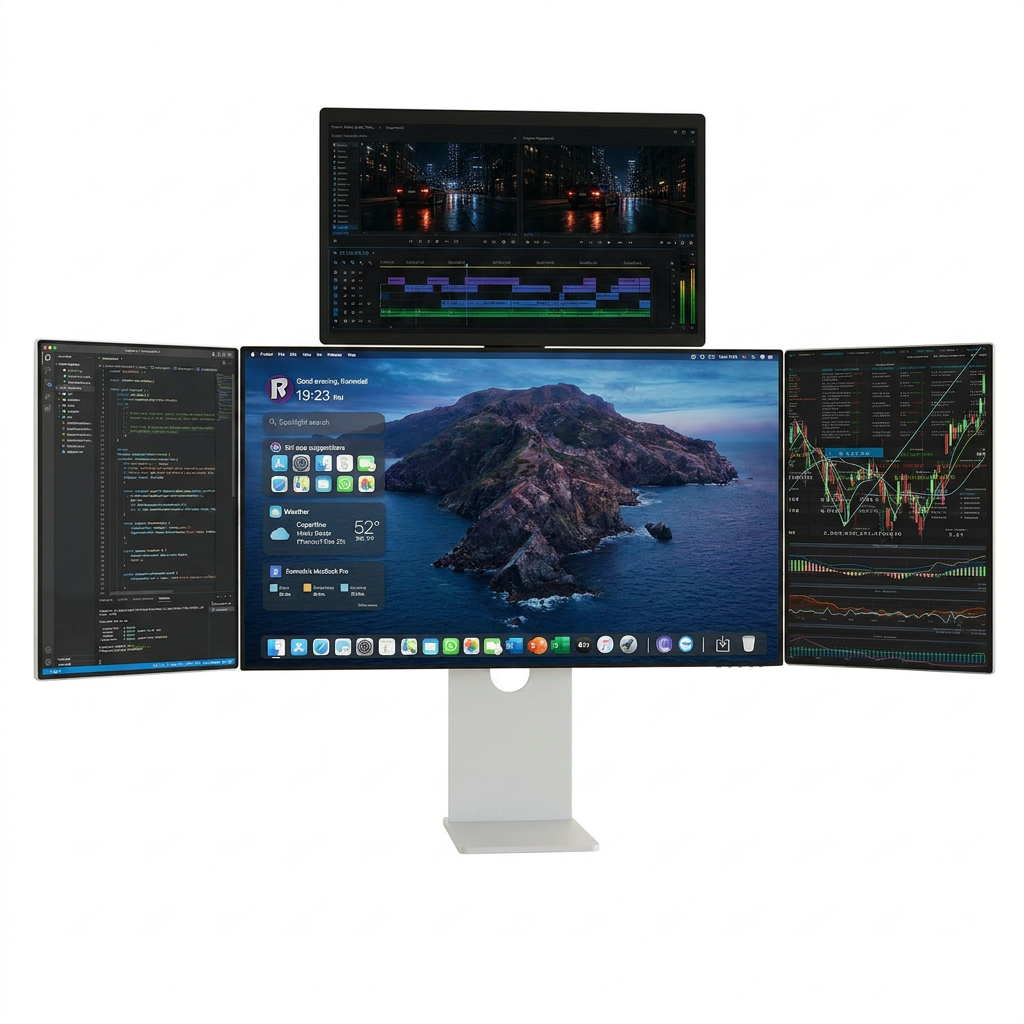
The Lepow TriScreen Pro Full Set brings together a 27-inch 4K main display, two foldable 16-inch side displays, and an 18.5-inch top display. Here is a practical way to arrange those four screens around your workflow.

The Full Set keeps four external displays visible while the laptop remains on the desk.
Give each screen one job
Start with the task that needs most of your attention. Put it on the 27-inch 4K main display: your code editor, design canvas, video timeline, spreadsheet, or primary chart.
Use the two 16-inch side displays for information you need nearby but do not want over your main window. One side might hold documentation or research; the other could show messages, logs, a second spreadsheet, or project files.
Reserve the 18.5-inch top display for something you check at a glance, such as a preview, dashboard, meeting window, or monitoring tool. You can see its status without moving it over your main task.
You do not need to use the same arrangement every day. A developer might keep code in the center, documentation on one side, logs on the other, and the running application above. An editor could put the timeline in the center, assets and controls on the sides, and a preview on top. For office work, the same space could hold a spreadsheet, source documents, messages, and a meeting.

One 27-inch main display, two side displays, and one top display make up the complete four-screen set.
Set it up for your desk
Arrange the displays where they are easy to see, then connect the workstation to its external power supply. A single USB-C cable connects the complete display system to your computer for video transmission. That cable keeps the computer connection simple, but the workstation still needs its separate power connection.
Download the correct driver
Step 1: Install the matching driver. For the Full Set's multi-screen setup, download the USB Display installer for your computer before arranging the displays. These are the same downloads linked in Lepow's Modular 4-Screen User Guide:
- Windows: RacerDisplayDriver
- Windows on ARM / Surface ARM: RacerDisplayDriverInstaller
- macOS: RacerUSB 1.0 Installer
Step 2: Check permissions. On macOS, after installation, enable USB Display in System Settings > Privacy & Security > Screen Recording. If you are unsure which installer your laptop needs, ask Lepow support to confirm compatibility before setup.
Step 3: Arrange the four screens. Open your computer's display settings and place the screens in the same left, right, and top positions you see on your desk. On Windows, choose Extend these displays; on macOS, arrange the screens under Displays. Move a window across them to check the layout.
The folding side displays and magnetic top display also let you change the layout when your work changes. Start with the screens you need for today's task, then expand the workspace when more information needs to stay visible.
Choose the configuration that fits your work
The 27-inch 4K Monitor Only option is for someone who wants the main display. The Full Set adds both 16-inch side displays and the 18.5-inch top display to create the four-screen workstation described here.
Think about the windows you regularly keep open. If one large display gives them enough room, start there. If you constantly switch between your main task and several sources of information, the Full Set gives those windows dedicated space.
Explore the Lepow TriScreen Pro configurations and choose the setup that matches the way you work.
Teilen:
Lepow 16" Triple Monitor Gen 2 Setup Guide